
📱 Step-by-Step Guide to Restoring an Android Device to Factory Settings Safely
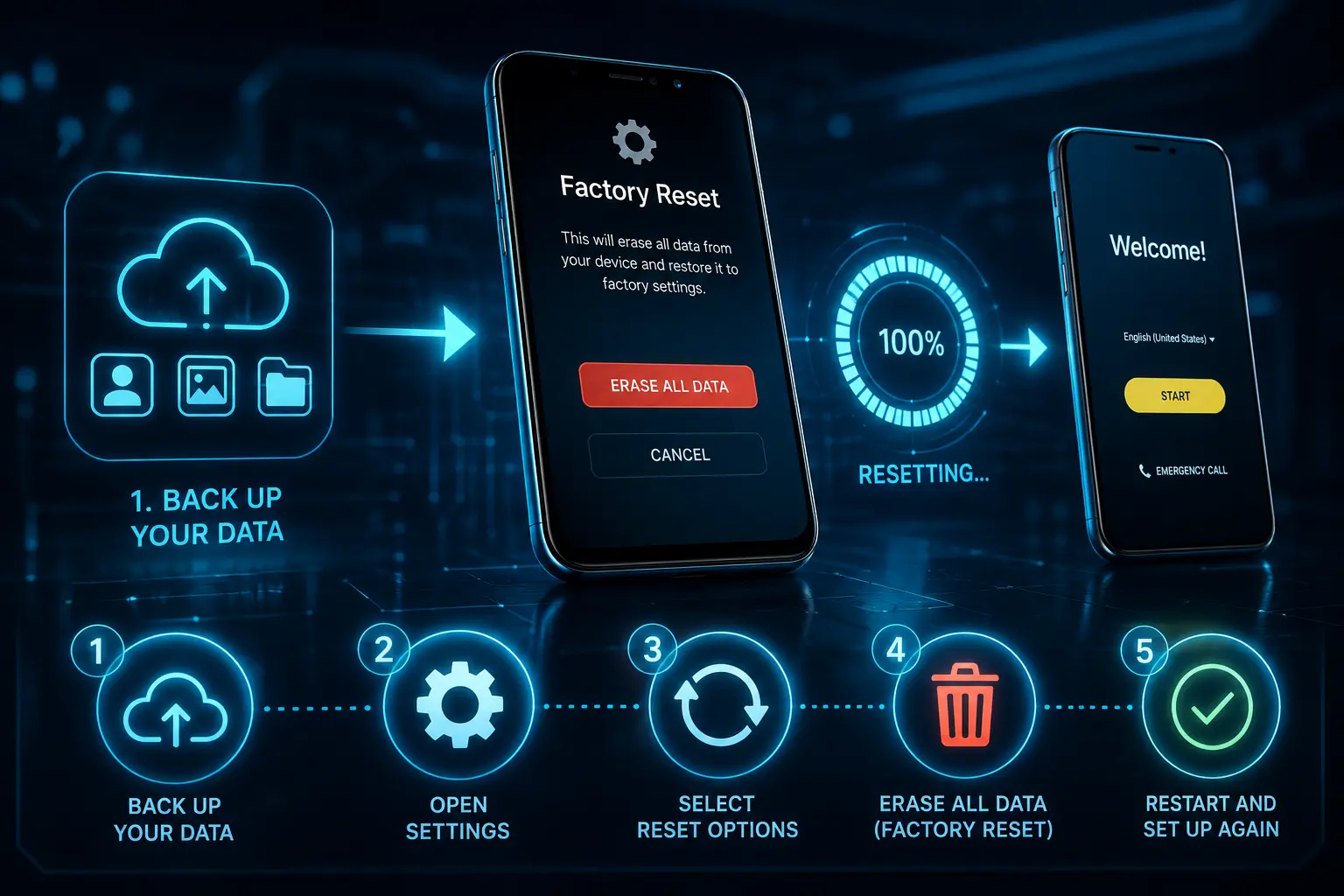
Factory resetting an Android phone is one of the most effective ways to solve software issues, remove personal data before selling a device, or simply start with a clean system. The process restores the phone to its original factory configuration by deleting installed apps, personal files, and custom settings. Before you begin, it is essential to back up any important data because the reset cannot be undone.
⚙️ Why Perform a Factory Reset?
A factory reset can significantly improve performance if your Android phone has become slow, unstable, or plagued by software glitches. It is also the recommended method for securely erasing your personal information before giving away, trading in, or selling your device. Most Android manufacturers offer the feature directly within the Settings menu, making the process simple even for beginners. Before resetting, ensure you know the Google account credentials associated with the phone, as they may be required during setup after the reset.
📂 1. Back Up Your Important Data
Before performing a factory reset, save everything you want to keep. Photos, videos, contacts, messages, documents, and application data may be permanently deleted from your device. Most Android phones automatically back up many items to your Google account, but it is still wise to verify that your latest backup has completed successfully.
You can also manually copy files to a computer, external storage device, or cloud service. If you use apps like WhatsApp or Signal, remember to create dedicated backups within those applications. Spending a few minutes preparing your backup can prevent the permanent loss of valuable memories and important information.
🔒 2. Remove Security Locks if Necessary
Although not always required, removing screen locks and signing out of accounts may simplify the reset process, especially when preparing a phone for a new owner. Devices protected by Google’s Factory Reset Protection (FRP) will still require the original Google account after the reset if it was not removed beforehand.
If you are keeping the phone for yourself, you can leave your accounts in place and simply proceed with the reset. However, if you plan to sell or donate the device, removing your Google account before erasing the phone helps ensure the next owner can activate it without encountering security restrictions.
📲 3. Reset the Phone Through Android Settings
The easiest method is available directly from Android’s Settings application. On most phones, open Settings → System → Reset options → Erase all data (Factory reset). Depending on the manufacturer, these menu names may differ slightly, but the overall process remains very similar across Samsung, Google Pixel, Xiaomi, Motorola, OnePlus, OPPO, and other Android devices.
After selecting the reset option, Android will display a summary explaining which data will be erased. Confirm the operation, enter your PIN, password, or pattern if requested, and allow the phone to restart. The process usually takes between five and twenty minutes depending on the device.
🛠️ 4. Reset Using Recovery Mode When Android Won’t Start
If your phone is frozen or refuses to boot, Recovery Mode provides another way to perform a factory reset. Power off the device completely, then press and hold the appropriate hardware button combination, which commonly includes the Power button together with one of the Volume buttons. The exact combination varies by manufacturer.
Inside Recovery Mode, use the volume buttons to navigate to Wipe data/Factory reset and confirm the selection with the Power button. After the reset finishes, choose Reboot system now. Your phone will restart and display the initial Android setup screen, allowing you to restore your backup or configure the device as new.
✅ What Happens After the Reset?
Once the factory reset is complete, your Android phone starts exactly like it did when it first left the factory. You will need to reconnect to Wi-Fi, sign in with your Google account, reinstall applications, and restore any available backups. If the device was previously linked to your Google account, Android may ask you to verify your identity through Factory Reset Protection before allowing setup to continue.
A factory reset is one of the most effective troubleshooting tools available for Android smartphones. It not only resolves many software problems but also protects your privacy when transferring ownership of the device. By creating a backup first and following the proper reset procedure, you can restore your phone safely and confidently whenever necessary.
📚 Sources
- Google Android Help – Reset your Android device to factory settings: https://support.google.com/android/answer/6088915
- Android.com – How to reset your Android device: https://www.android.com/articles/how-to-reset-android-device/
- Samsung Support – Perform a factory reset on your Galaxy phone or tablet: https://www.samsung.com/support/


