How to Change NAT Type to “OPEN” (PlayStation, Xbox, PC, Nintendo)


Network Address Translation (NAT) plays a key role in how your console or PC connects to online multiplayer games. If your NAT type is “Strict” or “Moderate,” you might face lag, connection drops, or issues joining friends’ sessions. Fortunately, there are reliable methods to change it to “Open” and improve your gaming experience.
Understanding NAT Types and Their Impact
NAT determines how easily your device can communicate with other players on the internet. An “Open” NAT type allows free communication, while “Moderate” or “Strict” types restrict access and can cause connection problems. The three primary NAT categories—Open, Moderate, and Strict—represent different levels of network accessibility. Understanding these helps you choose the right fix for your setup.
In online gaming, NAT settings often dictate matchmaking quality and voice chat stability. Consoles like Xbox, PlayStation, or Switch automatically assign a NAT type based on your router’s configuration. Adjusting your NAT settings through your network setup can drastically improve game performance and stability. Let’s explore how to achieve an Open NAT on any platform.
Checking Your Current NAT Type on Each Device
Before making changes, you need to identify your current NAT type. On Xbox, you can check under “Network Settings.” On PS5, go to “Settings > Network > View Connection Status.” For PC, open your game’s network settings or use your router dashboard. Nintendo Switch users can find it in “System Settings > Internet > Test Connection.”
Knowing your NAT status helps you decide what steps to take next. If it shows “Strict” or “Type 3,” you’ll need to modify your router configuration. Even “Moderate” or “Type 2” might still cause occasional issues when playing with users on different platforms. Once you know where you stand, you can start applying solutions.
Enable UPnP on Your Router for Automatic NAT Configuration
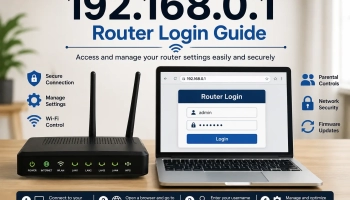
Universal Plug and Play (UPnP) is the simplest way to open your NAT. Log in to your router’s admin panel—usually accessible via your browser using the gateway IP (for example, 192.168.0.1). Then find and enable UPnP under the “Advanced” or “Network” settings tab. Restart your console or PC afterward to refresh the connection.
UPnP automatically opens necessary ports for gaming traffic, allowing smoother communication with servers and peers. This method works across most consoles and requires no manual configuration. However, if UPnP fails to help, you might need to try port forwarding for more control. It’s also a safer alternative than completely disabling your firewall.
Use Port Forwarding for a Precise NAT Fix
Port forwarding manually opens specific network ports that your console or game needs. You’ll need to find your device’s local IP address and then assign required ports in your router settings. For example, Xbox Live uses ports like 88 (UDP), 3074 (TCP/UDP), while PlayStation Network uses 80 (TCP), 3478–3480 (UDP). Apply these and restart your router.
This method is slightly technical but often more reliable than UPnP. It gives full control over which ports remain open and reduces the risk of random connection blocks. Ensure your console or PC has a static IP to avoid port mismatches. Once configured, test your connection again to confirm your NAT type is now “Open.”
Enable DMZ Mode for a Single Device
DMZ (Demilitarized Zone) places one device outside your router’s firewall protection, giving it unrestricted access to the internet. To use this, go to your router’s settings, locate the DMZ section, and input your console or PC’s IP address. After saving, restart the router and test your NAT type. It should show as “Open.”
While DMZ guarantees full connectivity, it should be used with caution. Only assign DMZ to one device at a time and avoid using it on your main PC for security reasons. It’s best suited for gaming consoles with limited online exposure. If configured correctly, DMZ can instantly solve NAT-related issues without needing port forwarding or UPnP.
Consider Double NAT and ISP Restrictions
Sometimes, even correct router settings won’t help if you’re behind two routers—a situation called Double NAT. This often happens when your ISP provides a modem-router combo, and you connect your own router to it. The fix involves setting your primary modem to “bridge mode” or connecting your console directly to the ISP’s router.
Additionally, some internet providers restrict port access or use carrier-grade NAT (CGNAT), especially in mobile or shared connections. In that case, contact your ISP and request a public IP or NAT configuration change. This can instantly resolve persistent multiplayer connectivity issues. Knowing how your network is structured is key to achieving a truly Open NAT.
Advanced Options: Static IP and Firewall Adjustments
Assigning a static IP ensures your console always keeps the same address on the network, avoiding port conflicts. You can set it manually in your device’s network settings or reserve it through your router. Adjusting your firewall or antivirus software to allow gaming traffic also helps maintain an Open NAT state.
These advanced steps are especially important for PC players, as software firewalls can interfere with network ports. Always whitelist your games or gaming platforms (Steam, Xbox App, etc.) for seamless connections. Combined with UPnP or port forwarding, a static IP setup provides long-term stability. It’s the final polish for a fully optimized gaming network.
Changing your NAT type to “Open” might seem technical at first, but it’s a straightforward process with the right guidance. Whether through UPnP, port forwarding, or DMZ, each method enhances your online connectivity and gameplay. Once configured, you’ll notice smoother matchmaking, faster connections, and fewer multiplayer disruptions across all platforms.